Variables & Conditions
Variables let you track game state, control dialogue flow with branching, and personalize text through substitution. DialogueCraft provides a unified variable system with multiple scopes, a visual node for modifications, and a full C# API.
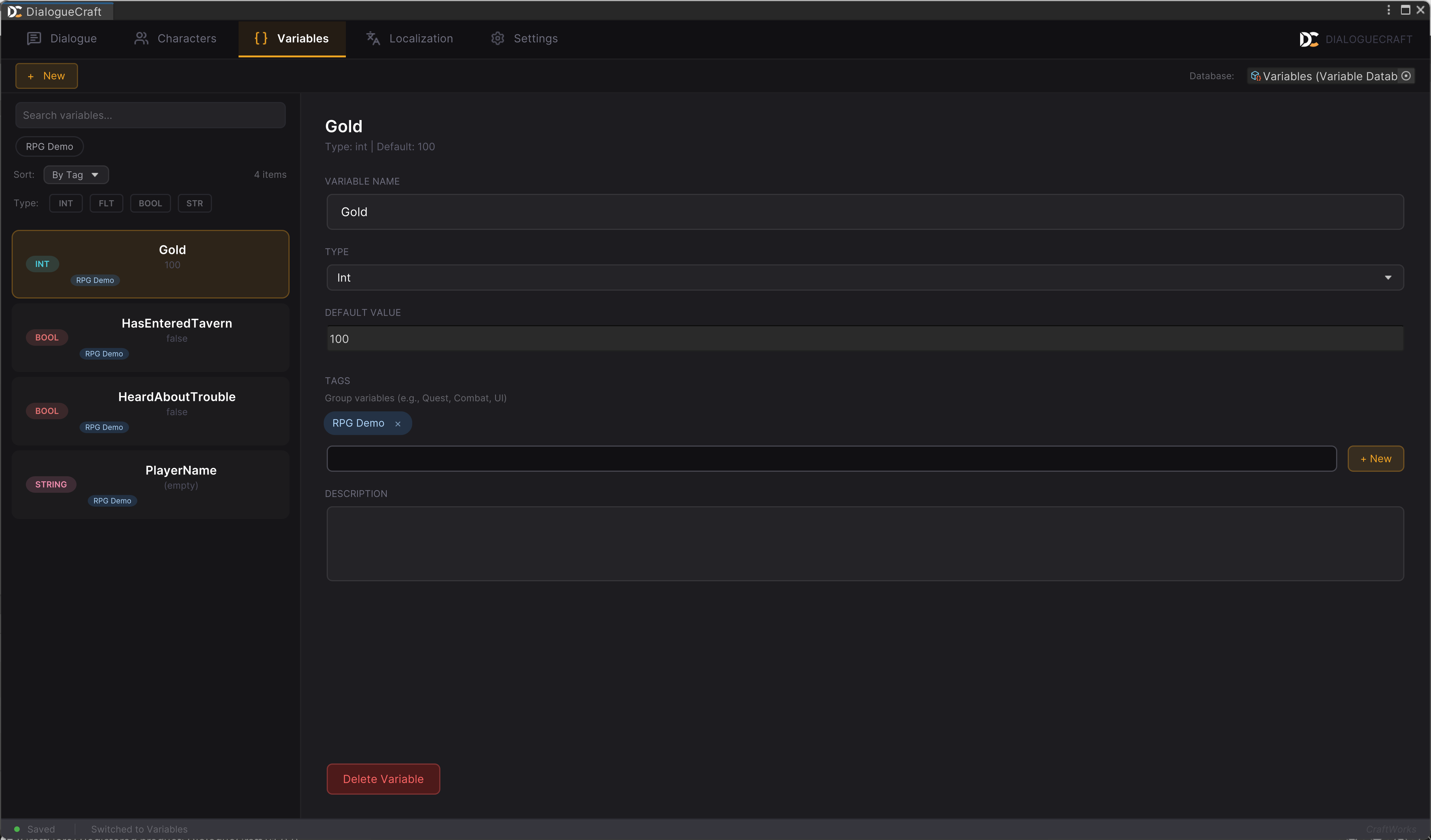
Variable Types
Every variable has one of four types:
| Type | UI Label | Description | Example Values |
|---|---|---|---|
| Int | int | Whole numbers | 0, 42, -5 |
| Float | float | Decimal numbers | 0.75, 3.14 |
| Bool | bool | True or false | true, false |
| String | string | Text | "Hello", "sword" |
Types determine which operations and comparison operators are available. When a variable is created at runtime without an explicit type, the system infers the type from the value assigned to it.
Variable Scopes
Global Variables
Global variables persist across all dialogues and play sessions (when saved). They are the primary way to track game-wide state such as quest progress, player stats, or story flags.
Definition: Create and manage global variables in the Variables tab of the Dialogue Editor, or through the VariableDatabase ScriptableObject asset referenced in DialogueCraft Settings.
Examples: PlayerGold, hasMetKnight, mainQuestStage
Persistence: Global variables are included in save data automatically. They survive dialogue endings and scene loads.
Actor Variables
Actor variables are per-character fields. Each character can define its own set of fields (e.g., Friendship, TimesVisited, HasDiscount), and every character maintains independent values.
Definition: Add fields to a character in the Characters tab of the Dialogue Editor. Each field on a CharacterData becomes an actor variable with a name, type, and default value.
Examples: A "Merchant" character might have Friendship (int, default 0), HasDiscount (bool, default false), and TimesVisited (int, default 0).
Initialization: Call DialogueVariables.InitializeActorFieldsFromDatabase(characterDatabase) at game start to populate default values. This only sets values for fields that have not already been set, so it preserves runtime state on subsequent calls.
Local Variables
Local variables are temporary and scoped to a single dialogue. They reset automatically when the dialogue ends.
Definition: Add local variables in the Inspector panel of the Dialogue Editor when a dialogue asset is selected.
Use cases: Tracking how many times a loop has executed, storing a temporary choice result, or counting items within a single conversation.
Relationships
Relationships are directional float values between two actors. The relationship from Actor A to Actor B can differ from B to A.
Examples: Player -> Merchant (Trust: 75) is independent from Merchant -> Player (Trust: 50).
Relationships are set and queried through the DialogueVariables API (see Runtime API below).
Variable Node
The Set Variable node modifies a variable value during dialogue execution. It appears as a purple node in the graph editor.
Configuration
- Scope -- Select Global, Actor, or Local.
- Actor -- (Actor scope only) Choose which character's field to modify. The dropdown shows cast members first, with an "All Characters..." escape hatch.
- Variable -- Pick the variable or actor field to modify. The dropdown is filtered by scope and shows type badges.
- Operation -- Choose how to modify the value.
- Value -- The operand for the operation. The input field adapts to the variable type (toggle for bool, number field for int/float, text field for string).
Operations
Available operations depend on the variable type:
| Operation | Int | Float | Bool | String | Description |
|---|---|---|---|---|---|
| Set | Yes | Yes | Yes | Yes | Replace with the given value |
| Add | Yes | Yes | -- | -- | Add to the current value |
| Subtract | Yes | Yes | -- | -- | Subtract from the current value |
| Multiply | Yes | Yes | -- | -- | Multiply by the given value |
| Divide | Yes | Yes | -- | -- | Divide by the given value (safe: skips if zero) |
| Toggle | -- | -- | Yes | -- | Flip true/false (no operand needed) |
| Append | -- | -- | -- | Yes | Concatenate text to the end |
Conditions
Conditions check variable values to control dialogue flow. They are used in Branch nodes and on individual choices within Choice nodes.
Branch Node
The Branch node (labeled "Condition" in the editor) evaluates one or more condition groups and routes dialogue to the first matching branch. If no conditions match, the Else output is taken.
Each branch can contain multiple conditions combined with AND or OR logic:
- AND (default): All conditions in the group must pass.
- OR: Any single condition passing is sufficient. Toggle this with the OR switch that appears when a branch has multiple conditions.
Comparison Operators
| Operator | Symbol | Needs Value | Applicable Types |
|---|---|---|---|
| Equals | == | Yes | Int, Float, Bool, String |
| Not Equals | != | Yes | Int, Float, Bool, String |
| Greater Than | > | Yes | Int, Float |
| Greater Than or Equal | >= | Yes | Int, Float |
| Less Than | < | Yes | Int, Float |
| Less Than or Equal | <= | Yes | Int, Float |
| Contains | has | Yes | String |
| Starts With | starts | Yes | String |
| Ends With | ends | Yes | String |
| Is True | is true | No | Bool |
| Is False | is false | No | Bool |
| Is Set | is set | No | All (checks existence/non-empty) |
| Is Not Set | not set | No | All (checks empty/null) |
Note: Float equality uses Mathf.Approximately for safe floating-point comparison.
Variable-to-Variable Comparisons
Conditions can compare a variable against a literal value or against another variable. Click the mode toggle button on a condition row to switch between value mode and variable mode. In variable mode, you select a second variable (from any scope) as the comparison target.
Scope-Aware Evaluation
Conditions support all three variable scopes. When configuring a condition, the dropdown shows global variables, local variables (suffixed with (local)), and actor variables (formatted as CharacterName.FieldName). The system automatically resolves the correct variable store at runtime based on the stored scope and actor ID.
Choice Conditions
Choices in a Choice node support two types of conditions:
- Show Conditions: If any condition fails, the choice is hidden entirely.
- Enable Conditions: If any condition fails, the choice is visible but greyed out (disabled). An optional
disabledTextexplains why.
Text Substitution
You can embed variable values directly in dialogue text using curly-brace patterns like {PlayerName} or {Speaker.Friendship}. These are resolved at runtime before the text is displayed.
For a complete reference of all supported patterns, see the Text Substitution Reference.
Runtime API
The DialogueVariables class is the central facade for all variable access. The shared instance is available at DialogueRunner.SharedVariables.
Global Variables
var vars = DialogueRunner.SharedVariables;

// Get and set
int gold = vars.GetGlobal<int>("PlayerGold", 0);
vars.SetGlobal("PlayerGold", gold + 100);

// Check existence
bool exists = vars.HasGlobal("PlayerGold");

// Direct store access
VariableStore globalStore = vars.Global;
Actor Variables
// Convenience methods
int friendship = vars.GetActor<int>("merchant_01", "Friendship", 0);
vars.SetActor("merchant_01", "Friendship", 50);
bool has = vars.HasActor("merchant_01", "Friendship");

// Store access via method or indexer
VariableStore merchantVars = vars.Actor("merchant_01");
VariableStore merchantVars2 = vars["merchant_01"];
merchantVars.SetVariable("Friendship", 75);

// Initialize from character database (call at game start)
vars.InitializeActorFieldsFromDatabase(characterDatabase);
Local Variables
vars.SetLocal("tempCount", 3);
int count = vars.GetLocal<int>("tempCount", 0);
bool exists = vars.HasLocal("tempCount");

// Local variables are cleared automatically when dialogue ends.
// To clear manually:
vars.ClearLocalVariables();
Relationships
// Set a directional relationship
vars.SetRelationship("player", "merchant", "Trust", 75f);

// Get (with default)
float trust = vars.GetRelationship("player", "merchant", "Trust", 0f);

// Increment / Decrement
vars.IncRelationship("player", "merchant", "Trust", 10f);
vars.DecRelationship("player", "merchant", "Trust", 5f);

// Check existence
bool exists = vars.HasRelationship("player", "merchant", "Trust");
Change Events
Subscribe to OnVariableChanged to react when any variable is modified:
vars.OnVariableChanged += (sender, args) =>
{
    Debug.Log($"Variable '{args.VariableName}' changed from {args.OldValue} to {args.NewValue}");
    if (args.ActorId != null)
        Debug.Log($"  (Actor: {args.ActorId})");
};
Save and Load
Export all variable state for integration with your own save system:
// Export
DialogueVariablesSaveData saveData = vars.GetSaveData();
// Serialize saveData with JsonUtility, your save system, etc.

// Import (full replace, not merge)
vars.LoadSaveData(saveData);
The DialogueVariablesSaveData class is serializable and contains global variables, actor variables, and relationships. Embed it in your save file alongside other game data.
VariableStore Methods
Each scope (Global, Local, or an Actor store) is a VariableStore with these methods:
| Method | Signature | Description |
|---|---|---|
GetVariable | DialogueVariable GetVariable(string name) | Get the raw variable object |
SetVariable | void SetVariable(string name, object value, string actorId = null) | Set a value (creates if missing) |
GetValue<T> | T GetValue<T>(string name, T defaultValue = default) | Get a typed value with fallback |
HasVariable | bool HasVariable(string name) | Check if a variable exists |
RemoveVariable | bool RemoveVariable(string name) | Remove a variable |
Clear | void Clear() | Remove all variables |
GetVariableNames | IEnumerable<string> GetVariableNames() | List all variable names |
ApplyOperation | void ApplyOperation(string name, VariableOperation op, string operand) | Apply Set/Add/Subtract/etc. |