Triggers, Interaction, and Runtime API
Start dialogues from gameplay using proximity detection, input events, clicks, or code. This guide covers every component in the interaction and integration layers, the event system, input abstraction, actor resolution, and the full DialogueRunner API.
Table of Contents
- DialogueTrigger
- DialogueInteractable
- InteractionDetector
- InteractionPromptUI
- DialogueActor
- DialogueActorResolver
- Input System Support
- DialogueEvents
- Starting Dialogues from Code
DialogueTrigger
Self-contained component that starts a dialogue based on configurable conditions. Works with both 2D and 3D colliders.
Add component: CraftWorks > DialogueCraft > Dialogue Trigger
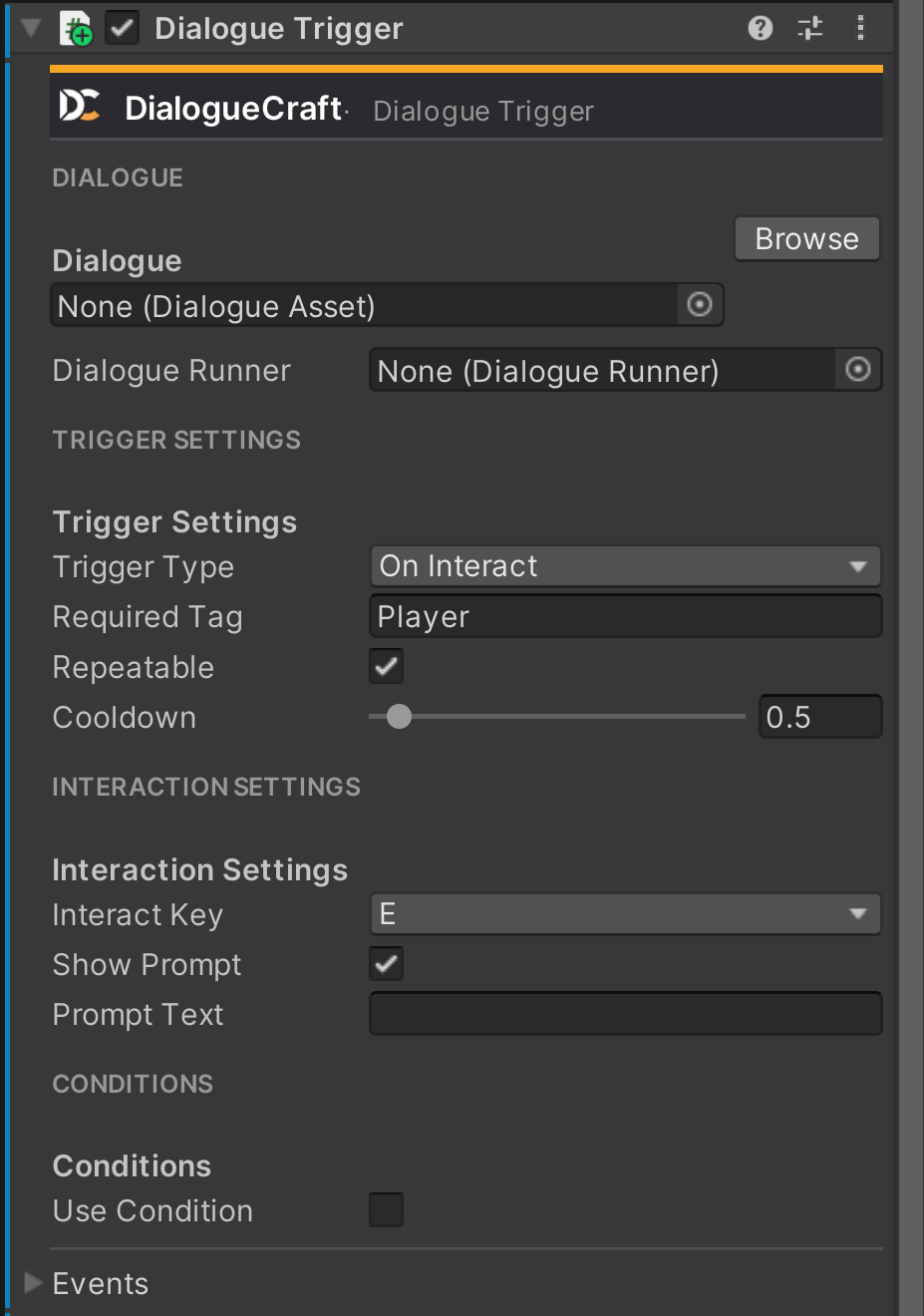
Inspector Fields
| Field | Type | Default | Description |
|---|---|---|---|
dialogue | DialogueAsset | null | The dialogue to play when triggered. |
dialogueRunner | DialogueRunner | null | Runner to use. Auto-finds one in the scene if not set. |
triggerType | TriggerType | OnInteract | How the dialogue is activated (see enum below). |
requiredTag | string | "Player" | Only objects with this tag can trigger. Leave empty to accept any object. |
repeatable | bool | true | Allow multiple activations. |
cooldown | float | 0.5 | Seconds between activations (range: 0--10). |
interactKey | KeyCode | KeyCode.E | Key for OnInteract mode. |
showPrompt | bool | true | Show an on-screen prompt when the player enters range (OnInteract mode only). |
promptText | string | "" | Custom prompt text. If empty, defaults to "Press {interactKey} to talk". |
useCondition | bool | false | Gate the trigger behind a variable condition. |
conditionVariable | string | "" | Name of the global variable to check. |
conditionOperator | ConditionOperator | Equals | Comparison operator. |
conditionValue | string | "" | Value to compare against. |
TriggerType Enum
| Value | Behavior |
|---|---|
OnInteract | Player enters the trigger collider and presses interactKey. |
OnTriggerEnter | Fires automatically when a valid object enters the trigger collider. |
OnClick | Fires when the player clicks on the object (OnMouseDown). |
OnStart | Fires automatically in Start() -- useful for cutscenes and opening sequences. |
Events (UnityEvent)
| Event | Fired When |
|---|---|
OnTriggered | The dialogue was successfully started. |
OnPlayerEnterRange | A valid object entered the trigger collider. |
OnPlayerExitRange | A valid object exited the trigger collider. |
Properties
| Property | Type | Description |
|---|---|---|
IsPlayerInRange | bool | Whether a valid object is currently inside the trigger collider. |
CanTrigger | bool | Whether the trigger can fire right now. Returns false if: non-repeatable and already triggered, cooldown has not elapsed, no dialogue assigned, or condition is enabled and fails. |
Methods
// Attempts to trigger the dialogue. Returns true if dialogue was started.
// Respects CanTrigger checks and will not fire if the DialogueRunner is already running.
public bool TryTrigger()

// Forces the dialogue to start, bypassing conditions, cooldown, and repeatability.
// Still requires a valid dialogue asset and DialogueRunner reference.
public void ForceTrigger()

// Resets internal state (clears hasTriggered flag and cooldown timer)
// so a non-repeatable trigger can fire again.
public void ResetTrigger()
3D and 2D Support
DialogueTrigger handles both physics systems. It implements:
OnTriggerEnter(Collider)/OnTriggerExit(Collider)for 3D collidersOnTriggerEnter2D(Collider2D)/OnTriggerExit2D(Collider2D)for 2D colliders
Both paths share the same logic: tag validation via requiredTag, range tracking (playerInRange), prompt display, and trigger activation. The entering object's tag is checked with CompareTag.
Requirements:
- The trigger GameObject needs a Collider (3D) or Collider2D (2D) with Is Trigger enabled.
- The entering object must have a Rigidbody/Rigidbody2D for trigger callbacks to fire.
- The entering object must have the tag specified in
requiredTag(default:"Player").
Condition Gating
When useCondition is enabled, the trigger evaluates a global variable from DialogueCraftSettings.Variables before firing. It constructs a Condition with the configured variable name, operator, and compare value. If the condition fails, CanTrigger returns false and TryTrigger() will not start the dialogue.
Prompt System
When triggerType is OnInteract and showPrompt is true, the trigger searches for an InteractionPromptUI in the scene (cached as a static reference). When the player enters range, it calls Show() with either promptText or the default "Press {interactKey} to talk". The prompt is hidden when the player exits range, when the dialogue starts, or when the trigger is disabled.
Editor Gizmos
When selected in the editor, the trigger draws a semi-transparent amber gizmo matching the attached collider shape: SphereCollider, BoxCollider, CircleCollider2D, or BoxCollider2D.
Setup Example
- Add a
DialogueTriggercomponent to an NPC GameObject. - Assign a
DialogueAssetto thedialoguefield. - Add a SphereCollider, enable Is Trigger, set the radius to your desired interaction range.
- Set
triggerTypetoOnInteractandinteractKeyto your preferred key. - Tag your player GameObject as
"Player". - Ensure the player has a Rigidbody (can be kinematic).
DialogueInteractable
NPC-side component that marks an object as available for dialogue interaction. Designed to work with the player-side InteractionDetector, which handles detection, focus management, and input. While DialogueTrigger is self-contained, DialogueInteractable is a passive marker that waits for the detector to find it.
Add component: CraftWorks > DialogueCraft > Dialogue Interactable
Inspector Fields
| Field | Type | Default | Description |
|---|---|---|---|
dialogue | DialogueAsset | null | The dialogue to play when interacted with. |
dialogueRunner | DialogueRunner | null | Runner to use. Auto-finds one in the scene if not set. |
displayName | string | "Character" | Name shown in the interaction prompt. |
promptFormat | string | "Press {key} to talk to {name}" | Prompt template. {name} is replaced with displayName, {key} with the interact key. |
repeatable | bool | true | Allow multiple interactions. |
priority | int | 0 | Selection priority when multiple interactables are in range. Higher values are preferred. |
isEnabled | bool | true | Whether this interactable is currently active. |
Events (UnityEvent)
| Event | Fired When |
|---|---|
OnInteracted | The interaction succeeded and dialogue started. |
OnBecameFocused | This became the currently focused interactable (closest or highest priority). |
OnLostFocus | This is no longer the focused interactable. |
Properties
| Property | Type | Description |
|---|---|---|
CanInteract | bool | true if isEnabled is true, a dialogue is assigned, and (if not repeatable) has not yet been used. |
IsFocused | bool | Whether this is the currently focused interactable. |
Methods
// Attempts to interact. Returns true if dialogue was started.
// Checks CanInteract and verifies the runner is not already playing.
public bool Interact()

// Returns the formatted prompt text with {name} and {key} replaced.
public string GetPromptText(KeyCode interactKey)

// Sets the focus state. Fires OnBecameFocused or OnLostFocus when the state changes.
// Called by InteractionDetector; can also be called manually.
public void SetFocused(bool focused)

// Resets the interaction state so a non-repeatable interactable can be used again.
public void ResetInteraction()
DialogueTrigger vs. DialogueInteractable
| Feature | DialogueTrigger | DialogueInteractable |
|---|---|---|
| Self-contained | Yes -- handles its own detection and input | No -- requires InteractionDetector on the player |
| Trigger modes | OnInteract, OnTriggerEnter, OnClick, OnStart | Interact only (via InteractionDetector) |
| Multi-NPC priority | No | Yes -- priority field + distance sorting |
| Focus events | No | Yes -- OnBecameFocused / OnLostFocus |
| Condition gating | Yes -- variable conditions built in | No (handle externally via isEnabled or custom code) |
| Prompt format | Static text or default | Template with {name} and {key} tokens |
| Cooldown | Yes (configurable) | No |
Use DialogueTrigger for simple, self-contained setups. Use DialogueInteractable + InteractionDetector when you have multiple NPCs and need automatic focus management with priority-based selection.
InteractionDetector
Player-side component that scans for nearby DialogueInteractable objects using physics overlap queries, selects the best one based on priority and distance, and handles interaction input.
Add component: CraftWorks > DialogueCraft > Interaction > Interaction Detector
Inspector Fields
| Field | Type | Default | Description |
|---|---|---|---|
detectionRadius | float | 3.0 | Radius for detecting interactables (range: 0.5--10). |
interactableLayer | LayerMask | Everything (-1) | Layer mask filtering which objects to scan. |
updateInterval | float | 0.1 | How often detection runs, in seconds (range: 0.05--0.5). |
interactKey | KeyCode | KeyCode.E | Key to press to interact with the focused interactable. |
promptUI | InteractionPromptUI | null | Interaction prompt UI component. Auto-finds one in the scene if not set. |
showPrompt | bool | true | Whether to display a prompt for the current interactable. |
Properties
| Property | Type | Description |
|---|---|---|
CurrentInteractable | DialogueInteractable | The currently focused interactable, or null if none in range. |
NearbyInteractables | IReadOnlyList<DialogueInteractable> | All interactables currently in range, sorted by priority then distance. |
Methods
// Attempts to interact with the current interactable.
// Returns true if dialogue was started.
public bool TryInteract()
Detection Logic
Every updateInterval seconds, the detector runs:
- Clears the list of nearby interactables.
- Uses
Physics.OverlapSphere(position, detectionRadius, interactableLayer)to find 3D colliders. - Uses
Physics2D.OverlapCircleAll(position, detectionRadius, interactableLayer)to find 2D colliders (additive, no duplicates). - For each collider, checks for a
DialogueInteractablecomponent whereCanInteractistrue. - Sorts results by priority (descending), then by distance (ascending) as a tiebreaker.
- Selects the top result as the new focused interactable.
When focus changes:
- Calls
SetFocused(false)on the previous interactable (firesOnLostFocus). - Calls
SetFocused(true)on the new interactable (firesOnBecameFocused). - Updates the prompt UI with the new interactable's
GetPromptText().
When the detector is disabled (OnDisable), it clears focus on the current interactable and hides the prompt.
Editor Gizmos
Draws the detection radius as a semi-transparent amber sphere with a wire outline when selected.
InteractionPromptUI
On-screen prompt that follows a world-space target, displaying messages like "Press E to talk to Merchant." Place this on a Canvas in your scene.
Add component: CraftWorks > DialogueCraft > Interaction > Interaction Prompt UI
Inspector Fields
| Field | Type | Default | Description |
|---|---|---|---|
promptText | TextMeshProUGUI | null | Text component to display the prompt message. |
panel | GameObject | null | Optional background panel (activated/deactivated with the prompt). |
followTarget | bool | true | Whether to follow a target Transform in world space. |
offset | Vector3 | (0, 2, 0) | Offset from the target position in world space. |
targetCamera | Camera | null | Camera for world-to-screen conversion. Uses Camera.main if not set. |
animate | bool | true | Enable fade-in/fade-out animation. |
animationDuration | float | 0.2 | Duration of the fade animation (range: 0.1--1.0). |
Methods
// Shows the prompt with the given text, optionally following a target transform.
public void Show(string text, Transform target = null)

// Hides the prompt (animated if animate is true, immediate otherwise).
public void Hide()
Behavior
- A
CanvasGroupis automatically added if missing. The prompt starts hidden. - Each frame (
LateUpdate), iffollowTargetis true and a target is assigned, the prompt converts the target's world position (plusoffset) to screen coordinates and positions itself there. - The prompt is only visible when the target is in front of the camera (
screenPos.z > 0). - Animation uses an ease-out-quad curve for smooth fading via
CanvasGroup.alpha. - When hidden,
CanvasGroup.blocksRaycastsandCanvasGroup.interactableare set tofalse.
Setup
- Create a Canvas in your scene (Screen Space - Overlay or Screen Space - Camera).
- Add a child GameObject with the
InteractionPromptUIcomponent. - Add a
TextMeshProUGUIchild for the prompt text. - Optionally add a background Image on a separate child and assign it to
panel. - Assign references in the Inspector.
When the component is reset in the editor, it automatically searches children for a TextMeshProUGUI and an Image to assign as promptText and panel.
DialogueActor
Marks a scene GameObject as addressable by dialogue nodes. Sequence nodes (Actor, Animate, Camera, Shake, Spawn, etc.) reference actors by their ID string. Add this component to any character, prop, or object you want to control from dialogue.
Add component: CraftWorks > DialogueCraft > Dialogue Actor
Fields
| Field | Type | Description |
|---|---|---|
ActorId | string | Unique identifier used in dialogue nodes to reference this object. |
Actor | Character | Optional link to a Character ScriptableObject (for portraits and display name). |
DisplayNameOverride | string | Overrides the display name from the Character asset. |
ID Resolution Priority
GetActorId() returns the first non-empty value from:
ActorIdfieldActor.characterId(from the linked Character asset)gameObject.name(fallback)
Display Name Priority
The DisplayName property returns the first non-empty value from:
DisplayNameOverrideActor.displayName(from the linked Character asset)gameObject.name(fallback)
DialogueActorResolver
Static utility class that resolves string-based actor references to scene GameObjects at runtime. Used internally by Actor, Animate, Spawn, Event (SendMessage mode), and other sequence nodes.
Resolution Order
Given an actor ID string, the resolver tries each strategy in order and returns the first match:
| Priority | Input | Strategy |
|---|---|---|
| 1 | "speaker" (case-insensitive) | Finds the DialogueActor matching runner.CurrentSpeakerId. |
| 2 | "listener" (case-insensitive) | Finds the DialogueActor matching runner.CurrentListenerId. |
| 3 | Any string | Searches all DialogueActor components in the scene for a matching GetActorId() (case-insensitive comparison). |
| 4 | Any string | Falls back to GameObject.Find(actorId) -- matches any GameObject by name. |
| 5 | "tag:TagName" | Uses GameObject.FindWithTag("TagName"). The tag: prefix is case-insensitive. |
If no match is found at any level, a warning is logged and null is returned.
Methods
// Resolves an actor ID to a GameObject.
public static GameObject Resolve(string actorId, DialogueRunner runner)

// Resolves to a Transform (convenience wrapper around Resolve).
public static Transform ResolveTransform(string actorId, DialogueRunner runner)

// Resolves to an Animator. Checks the resolved GameObject first,
// then searches its children with GetComponentInChildren.
public static Animator ResolveAnimator(string actorId, DialogueRunner runner)

// Resolves to a NavMeshAgent on the resolved GameObject.
public static NavMeshAgent ResolveNavMeshAgent(string actorId, DialogueRunner runner)
Usage Examples
// Find the scene object for the current speaker
GameObject speaker = DialogueActorResolver.Resolve("speaker", runner);

// Find a specific NPC by actor ID
Transform merchant = DialogueActorResolver.ResolveTransform("merchant_doran", runner);

// Get an animator for an actor (checks children too)
Animator anim = DialogueActorResolver.ResolveAnimator("knight", runner);

// Find an object by tag
GameObject enemy = DialogueActorResolver.Resolve("tag:Enemy", runner);
Input System Support
DialogueCraft abstracts input through the IDialogueInput interface, supporting Unity's Legacy Input Manager, the New Input System package, and custom implementations.
IDialogueInput Interface
All input providers implement this interface:
public interface IDialogueInput
{
    // True on the frame the player wants to advance dialogue.
    bool ContinuePressed { get; }

    // True while the player holds the skip key (fast typewriter).
    bool SkipHeld { get; }

    // -1 = up/previous, +1 = down/next, 0 = no navigation.
    // Used for keyboard/gamepad choice navigation.
    int ChoiceNavigate { get; }

    // True on the frame the player confirms their choice selection.
    bool ChoiceConfirm { get; }

    // Called when the input provider is activated/deactivated.
    void Enable();
    void Disable();
}
LegacyDialogueInput
Default implementation using UnityEngine.Input. Works out of the box with no additional packages.
Add component: CraftWorks > DialogueCraft > Integration > Legacy Dialogue Input
| Field | Type | Default | Description |
|---|---|---|---|
continueKey | KeyCode | Space | Primary key to advance dialogue. |
continueKeyAlt | KeyCode | Return | Alternative advance key. |
continueMouseButton | int | 0 (left click) | Mouse button to advance. Set to -1 to disable. |
skipKey | KeyCode | LeftControl | Hold to fast-forward typewriter text. |
navigateUpKey | KeyCode | UpArrow | Navigate up in choice list. |
navigateUpKeyAlt | KeyCode | W | Alternative navigate up. |
navigateDownKey | KeyCode | DownArrow | Navigate down in choice list. |
navigateDownKeyAlt | KeyCode | S | Alternative navigate down. |
confirmKey | KeyCode | Return | Confirm choice selection. |
confirmKeyAlt | KeyCode | Space | Alternative confirm. |
Navigation input is cached per frame to prevent double-reads within the same frame.
NewInputSystemDialogueInput
Implementation using Unity's Input System package. Only available when the package is installed (compiled under #if DIALOGUECRAFT_NEW_INPUT_SYSTEM). Supports gamepad, keyboard, and rebindable controls.
Add component: CraftWorks > DialogueCraft > Integration > New Input System Dialogue Input
| Field | Type | Description |
|---|---|---|
continueAction | InputActionReference | Action for advancing dialogue. |
skipAction | InputActionReference | Action for skipping typewriter (held -- uses performed/canceled callbacks). |
navigateAction | InputActionReference | Action for choice navigation (reads Vector2). Y > 0.5 maps to up (-1), Y < -0.5 maps to down (+1). |
confirmAction | InputActionReference | Action for confirming a choice. |
Actions are automatically enabled on OnEnable and unbound on OnDisable. One-shot inputs (ContinuePressed, ChoiceNavigate, ChoiceConfirm) reset in LateUpdate to ensure they are consumed only once per frame.
DialogueInputHandler
Central singleton that auto-detects and manages the active input provider.
Add component: CraftWorks > DialogueCraft > Integration > Dialogue Input Handler
Fields
| Field | Type | Default | Description |
|---|---|---|---|
mode | InputMode | Auto | Which input system to use. |
customInputProvider | MonoBehaviour | null | Custom IDialogueInput implementation (when mode is Custom). |
InputMode Enum
| Mode | Behavior |
|---|---|
Auto | Prefers New Input System if installed and configured (has actions assigned); falls back to Legacy. |
Legacy | Forces LegacyDialogueInput. |
NewInputSystem | Forces NewInputSystemDialogueInput. Falls back to Legacy if the package is not installed. |
Custom | Uses the assigned customInputProvider. Falls back to Legacy if null or not IDialogueInput. |
API
// Singleton access
DialogueInputHandler.Instance

// The active input provider
IDialogueInput Input { get; }

// Event fired when input mode changes
event Action<IDialogueInput> OnInputChanged;

// Switch modes at runtime
void SetMode(InputMode newMode)

// Enable/disable input handling
void EnableInput()
void DisableInput()

// Re-initialize the input system (called automatically on Awake and SetMode)
void InitializeInput()
Custom Input Provider
To implement custom input (e.g., for mobile touch or a third-party input asset):
public class TouchDialogueInput : MonoBehaviour, IDialogueInput
{
    public bool ContinuePressed => /* tap detected */;
    public bool SkipHeld => false;
    public int ChoiceNavigate => 0; // choices handled by UI buttons
    public bool ChoiceConfirm => /* tap on selected choice */;

    public void Enable() { /* enable touch listeners */ }
    public void Disable() { /* disable touch listeners */ }
}
Assign the component to DialogueInputHandler.customInputProvider and set mode to Custom.
DialogueEvents
DialogueCraft communicates runtime state through UnityEvent-based events on DialogueRunner. All events are serializable and configurable in the Inspector or subscribable from code.
Event Summary
| Event | Type | Fired When |
|---|---|---|
OnDialogueStart | UnityEvent | Dialogue begins (StartDialogue called). |
OnDialogueEnd | UnityEvent | Dialogue ends (Stop called, End node reached, or no more nodes). |
OnDialogueLine | DialogueLineEvent | A text node is displayed. |
OnChoicesPresented | DialogueChoicesEvent | A choice node is reached. |
OnDialogueEvent | DialogueTriggerEvent | An Event node fires, or a sequence node emits an internal event. |
OnWaitingForInput | UnityEvent | Runner is waiting for player to continue or select a choice. |
OnVoiceStart | VoiceStartEvent | Voice audio begins playing (for lip sync). |
OnVoiceEnd | VoiceEndEvent | Voice audio finishes playing. |
Event Argument Classes
DialogueLineEventArgs
Passed with OnDialogueLine.
| Field | Type | Description |
|---|---|---|
character | CharacterData | Full character data (may be null if character not found). |
characterId | string | Character ID from the text node. |
characterName | string | Resolved display name. |
text | string | The dialogue text (after localization, variable substitution, and typewriter tag stripping). |
portrait | Sprite | Character portrait from CharacterData. |
audioClip | AudioClip | Voice audio clip assigned to the text node (may be null). |
Constructor: DialogueLineEventArgs(string characterId, string characterName, string text, CharacterData character = null)
DialogueChoicesEventArgs
Passed with OnChoicesPresented.
| Field | Type | Description |
|---|---|---|
choices | DialogueChoiceOption[] | Array of available choices. |
DialogueChoiceOption
Each element in the choices array:
| Field | Type | Description |
|---|---|---|
index | int | Index of this choice. Pass to runner.SelectChoice(index). |
text | string | Choice display text (localized, with variables substituted). |
isEnabled | bool | false if the choice is greyed out due to failed enableConditions. |
isSticky | bool | If true, selecting this choice returns to the choice node after the branch ends. |
disabledText | string | Reason text for why a disabled choice is locked. Null if the choice is enabled. |
Constructor: DialogueChoiceOption(int index, string text, bool enabled = true, bool sticky = false, string disabledText = null)
DialogueTriggerEvent
UnityEvent<string, string> -- fires with (eventName, eventParameter).
Used by Event nodes (custom events) and internally by sequence nodes:
- Audio nodes fire
Audio_Play_{channel}andAudio_Stop_{channel} - Fade nodes fire
Fade_OutandFade_In - Shake nodes fire
Shake - Spawn nodes fire
SpawnandDestroy
VoiceEventArgs
Passed with OnVoiceStart and OnVoiceEnd. Intended for lip sync integration.
| Field | Type | Description |
|---|---|---|
character | CharacterData | Speaking character data (may be null). |
characterId | string | Character ID of the speaker. |
audioClip | AudioClip | The Unity AudioClip being played. Null when using FMOD. |
duration | float | Clip duration in seconds. 0 when using FMOD (duration determined by polling). |
fmodEventPath | string | FMOD event path for voice playback. Null when using Unity audio. |
Two constructors are available:
VoiceEventArgs(string characterId, CharacterData character, AudioClip clip)-- Unity audioVoiceEventArgs(string characterId, CharacterData character, string fmodPath)-- FMOD audio
Subscribing from Code
public class MyDialogueUI : MonoBehaviour
{
    public DialogueRunner runner;

    void OnEnable()
    {
        runner.OnDialogueStart.AddListener(OnStart);
        runner.OnDialogueEnd.AddListener(OnEnd);
        runner.OnDialogueLine.AddListener(OnLine);
        runner.OnChoicesPresented.AddListener(OnChoices);
        runner.OnDialogueEvent.AddListener(OnEvent);
        runner.OnWaitingForInput.AddListener(OnWaiting);
        runner.OnVoiceStart.AddListener(OnVoiceStart);
    }

    void OnDisable()
    {
        runner.OnDialogueStart.RemoveListener(OnStart);
        runner.OnDialogueEnd.RemoveListener(OnEnd);
        runner.OnDialogueLine.RemoveListener(OnLine);
        runner.OnChoicesPresented.RemoveListener(OnChoices);
        runner.OnDialogueEvent.RemoveListener(OnEvent);
        runner.OnWaitingForInput.RemoveListener(OnWaiting);
        runner.OnVoiceStart.RemoveListener(OnVoiceStart);
    }

    void OnStart()
    {
        dialoguePanel.SetActive(true);
        playerController.enabled = false;
    }

    void OnEnd()
    {
        dialoguePanel.SetActive(false);
        playerController.enabled = true;
    }

    void OnLine(DialogueLineEventArgs args)
    {
        nameLabel.text = args.characterName;
        dialogueText.text = args.text;
        portraitImage.sprite = args.portrait;
    }

    void OnChoices(DialogueChoicesEventArgs args)
    {
        foreach (var choice in args.choices)
        {
            var button = Instantiate(choiceButtonPrefab, choiceContainer);
            button.Setup(choice.text, choice.isEnabled, choice.disabledText);

            int index = choice.index;
            button.onClick.AddListener(() => runner.SelectChoice(index));
        }
    }

    void OnEvent(string eventName, string payload)
    {
        if (eventName == "give_item")
            inventory.AddItem(payload);
    }

    void OnWaiting()
    {
        continueIndicator.SetActive(true);
    }

    void OnVoiceStart(VoiceEventArgs args)
    {
        lipSyncController.StartSpeaking(args.characterId, args.duration);
    }
}
Starting Dialogues from Code
DialogueRunner Overview
DialogueRunner is the runtime engine that plays dialogue assets. It processes nodes sequentially, fires events, manages the typewriter effect, handles sub-dialogues, and tracks state.
Add component: CraftWorks > DialogueCraft > Dialogue Runner
Inspector Fields
| Field | Type | Default | Description |
|---|---|---|---|
dialogue | DialogueAsset | null | Default dialogue to play. |
characterDatabase | CharacterDatabase | null | For resolving character references. Falls back to DialogueCraftSettings.Characters. |
autoStart | bool | false | Start the assigned dialogue automatically on scene load. |
useTypewriter | bool | true | Enable typewriter text effect. |
typingSpeed | float | 0.05 | Seconds per character for the typewriter effect (range: 0.01--0.2). |
useLocalization | bool | true | Use localized text from LocalizationManager. |
DialogueState Enum
| State | Description |
|---|---|
Idle | No dialogue running. |
Running | Processing nodes (branch, variable, event, sequence nodes, etc.). |
Typing | Typewriter effect in progress. |
Waiting | Waiting for a timed event (Wait node, Timeline, audio playback, animation, shake, etc.). |
WaitingForContinue | Text fully displayed, waiting for player to advance. |
WaitingForChoice | Choices displayed, waiting for player selection. |
WaitingForVoice | Waiting for voice audio to finish playing. |
State Properties
DialogueState State { get; }              // Current state
bool IsRunning { get; }                    // True when State != Idle
bool IsWaitingForInput { get; }            // True when WaitingForContinue or WaitingForChoice
bool IsPaused { get; }                     // True when paused
string CurrentSpeakerId { get; }           // Character ID of the current speaker
string CurrentListenerId { get; }          // Character ID of the current listener
VariableStore Variables { get; }           // Per-dialogue variable store (legacy)
static DialogueVariables SharedVariables   // Static shared variable system (preferred)
StartDialogue
Three overloads are available:
// Start the dialogue assigned in the Inspector.
runner.StartDialogue();

// Start a specific dialogue asset.
runner.StartDialogue(myDialogueAsset);

// Start at a named entry point (for dialogues with multiple Entry nodes).
runner.StartDialogue(myDialogueAsset, "shop_greeting");
Behavior:
- If a dialogue is already running, it is stopped first (fires
OnDialogueEndfor the previous dialogue). - The runner initializes the variable store, seeds
SharedVariables.Localwith the dialogue's local variable defaults, sets state toRunning, and firesOnDialogueStart. - Processing begins from the specified entry node (or the default entry node if no name is given).
- A warning is logged if the asset is null or has no entry node.
Continue
runner.Continue();
Behavior depends on the current state:
| State | Effect |
|---|---|
WaitingForContinue | Advances to the next node. If paused at an <input> typewriter tag, resumes the typewriter instead. |
Typing | Skips the typewriter effect and shows full text immediately. |
Waiting | Sets the skip flag so skippable waits end early. |
SelectChoice
runner.SelectChoice(int index);
Only works when State is WaitingForChoice. The index corresponds to DialogueChoiceOption.index from the OnChoicesPresented event args. Invalid indices are silently ignored.
If the selected choice is sticky (isSticky = true), the runner pushes the current context onto an internal stack and returns to the choice node after the selected branch ends.
Pause and Resume
runner.Pause();     // Pauses dialogue, typewriter, wait coroutines, and audio
runner.Resume();    // Resumes from paused state
When paused, the typewriter coroutine halts, wait coroutines stop accumulating elapsed time, and audio is paused via AudioProviderManager.Provider.PauseAll(). On resume, audio is resumed with ResumeAll().
Stop
runner.Stop();
Immediately stops the dialogue:
- Stops all active coroutines (typewriter, wait, voice wait).
- Resets cameras that were activated with
resetOnDialogueEnd. - Clears the sub-dialogue and sticky choice stacks.
- Clears
SharedVariables.Local(dialogue-scoped variables). - Sets state to
Idle. - Fires
OnDialogueEnd.
SkipTypewriter
runner.SkipTypewriter();
Immediately completes the typewriter effect and shows the full text. Equivalent to calling Continue() while in the Typing state.
SendSignal
runner.SendSignal("door_opened");
Sends a named signal to resume a dialogue paused at a Signal node. If the signal name matches the pending signal (case-insensitive comparison), the dialogue continues to the next node. Call this from game code when a game event occurs that the dialogue is waiting for.
// Example: Signal node waits for "puzzle_solved"
// In your puzzle manager:
public void OnPuzzleSolved()
{
    dialogueRunner.SendSignal("puzzle_solved");
}
Variables
// Per-dialogue legacy API
int gold = runner.GetVariable<int>("gold", 0);
runner.SetVariable("gold", gold + 100);

// Shared variable system (preferred, static access)
// Global -- persists across dialogues and sessions
DialogueRunner.SharedVariables.Global.SetVariable("quest_complete", true);
int reputation = DialogueRunner.SharedVariables.Global.GetValue("reputation", 0);

// Actor -- per-character variables
DialogueRunner.SharedVariables.Actor("merchant").SetVariable("Friendship", 5);

// Local -- dialogue-scoped, cleared when dialogue ends
DialogueRunner.SharedVariables.Local.SetVariable("temp_choice", "sword");
SharedVariables is initialized once in the first DialogueRunner.Awake(). It seeds global variables from DialogueCraftSettings.Variables and actor variables from the CharacterDatabase field definitions.
Save and Restore
// Take a snapshot mid-dialogue (for save games)
DialogueStateSnapshot snapshot = runner.GetStateSnapshot();
// Returns null if no dialogue is running

// Restore from a snapshot
bool success = runner.RestoreFromSnapshot(snapshot);
// Returns true if restoration succeeded; re-presents the current node

// Export/import variables as JSON (legacy API)
string json = runner.GetVariablesJson();
runner.LoadVariablesJson(json);

// Check if a node has been visited
bool visited = runner.WasNodeVisited("node-guid-here");

// Get dialogue play count
int playCount = runner.GetPlayCount();
See the Save System guide for full persistence details.
Complete Example
using DialogueCraft;
using UnityEngine;

public class NPCInteraction : MonoBehaviour
{
    [SerializeField] private DialogueRunner runner;
    [SerializeField] private DialogueAsset greeting;
    [SerializeField] private DialogueAsset shopDialogue;

    void Start()
    {
        runner.OnDialogueLine.AddListener(OnLine);
        runner.OnChoicesPresented.AddListener(OnChoices);
        runner.OnDialogueEnd.AddListener(OnDialogueFinished);
    }

    public void TalkToNPC()
    {
        if (runner.IsRunning) return;

        // Pick dialogue based on game state
        bool hasMetBefore = DialogueRunner.SharedVariables.Global.GetValue("met_merchant", false);
        runner.StartDialogue(hasMetBefore ? shopDialogue : greeting);
    }

    void OnLine(DialogueLineEventArgs args)
    {
        nameLabel.text = args.characterName;
        dialogueText.text = args.text;
        portraitImage.sprite = args.portrait;
        continueButton.gameObject.SetActive(true);

        // Wire continue button
        continueButton.onClick.RemoveAllListeners();
        continueButton.onClick.AddListener(() =>
        {
            continueButton.gameObject.SetActive(false);
            runner.Continue();
        });
    }

    void OnChoices(DialogueChoicesEventArgs args)
    {
        continueButton.gameObject.SetActive(false);

        foreach (var choice in args.choices)
        {
            var button = Instantiate(choiceButtonPrefab, choiceContainer);
            button.GetComponentInChildren<TMP_Text>().text = choice.text;
            button.interactable = choice.isEnabled;

            int index = choice.index;
            button.onClick.AddListener(() =>
            {
                ClearChoiceButtons();
                runner.SelectChoice(index);
            });

            // Show lock reason for disabled choices
            if (!choice.isEnabled && !string.IsNullOrEmpty(choice.disabledText))
            {
                ShowDisabledReason(button, choice.disabledText);
            }
        }
    }

    void OnDialogueFinished()
    {
        DialogueRunner.SharedVariables.Global.SetVariable("met_merchant", true);
        dialoguePanel.SetActive(false);
    }
}
Choosing an Approach
| Approach | Best For |
|---|---|
DialogueTrigger | Simple interactions configured entirely in the Inspector. Supports zone triggers, click triggers, auto-start, and condition gating. |
DialogueInteractable + InteractionDetector | Multiple interactable NPCs with automatic priority-based focus management. |
DialogueRunner.StartDialogue() | Custom interaction systems, cutscenes, scripted sequences, or when you need full programmatic control over when and how dialogue starts. |