AI Features
Generate dialogue, edit existing conversations, and translate text into any language -- all from inside the Dialogue Editor.
Requirements
DialogueCraft AI features require CraftCore (bundled) and at least one configured API provider.
Setup
- Open Tools > CraftWorks > CraftCore > Settings
- Configure one or more API providers:
- OpenAI -- Requires API key. Default model:
gpt-4.1-mini - Anthropic -- Requires API key. Default model:
claude-haiku-4-5 - Google -- Requires API key. Default model:
gemini-2.0-flash
- OpenAI -- Requires API key. Default model:
- Select your default provider and model
Availability check
if (DialogueCraftAI.IsAvailable)
{
    Debug.Log($"Provider: {DialogueCraftAI.CurrentProviderName}");
}
DialogueCraftAI.IsAvailable returns true when at least one API key is configured in CraftCore settings.
AI Writing Assistant
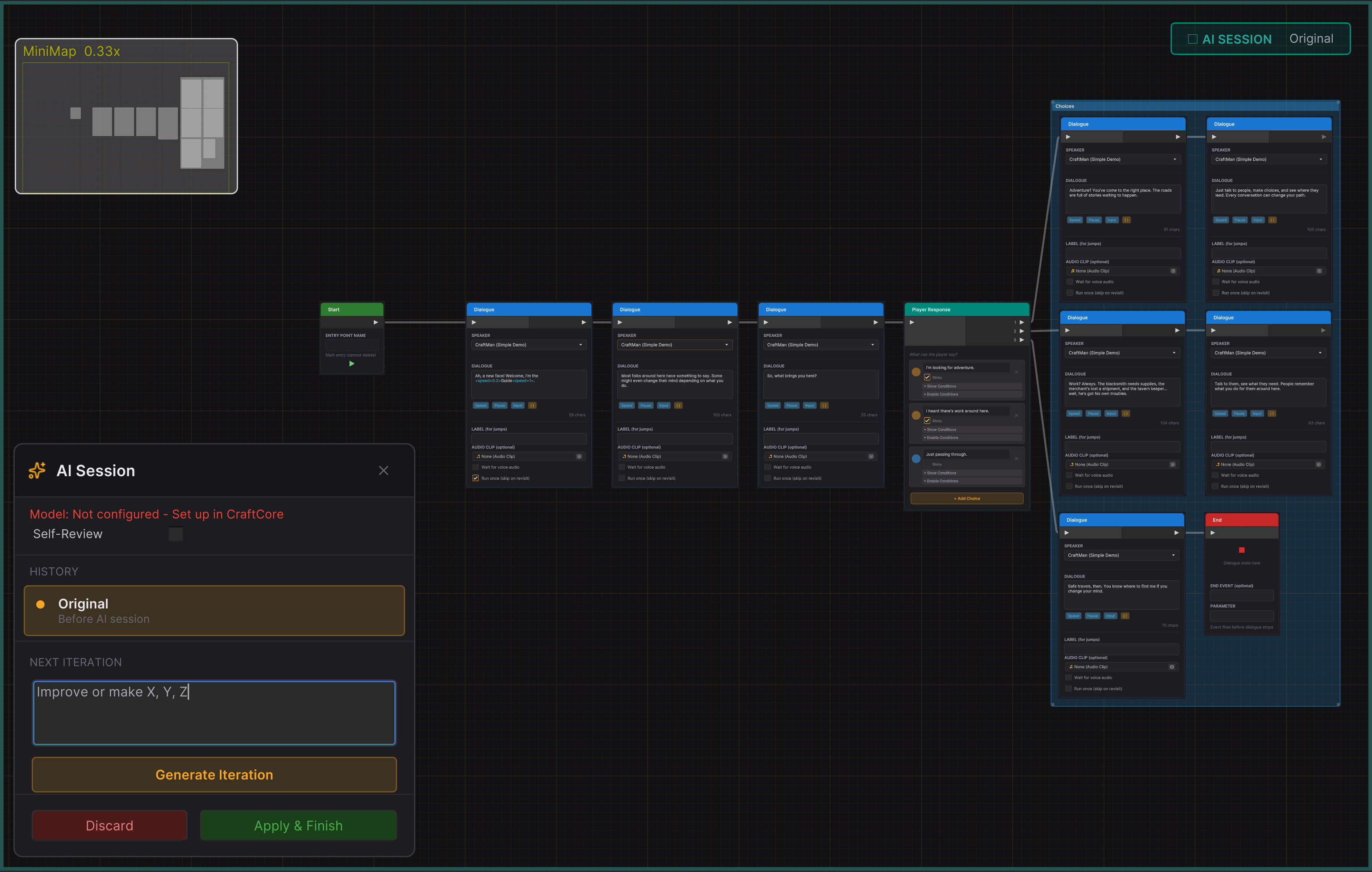
The AI Writing Assistant generates and iteratively edits dialogue content directly in the node graph. Access it from the Dialogue Editor toolbar.
Starting a session
- Open a dialogue in the Dialogue Editor
- Click the AI Session button in the toolbar
- The AI Session panel appears in the bottom-left of the graph (draggable)
The session panel shows:
- Model info -- Currently configured provider and model
- Self-Review toggle -- When enabled, the AI reviews its own output for character voice and parameter quality (extra API call)
- History -- All iterations with revert buttons
- Prompt field -- Where you type instructions (Ctrl+Enter to generate)
- Generate Iteration -- Sends your prompt to the AI
- Discard / Apply & Finish -- End the session
How sessions work
When you start a session, AISessionManager.StartSession(DialogueAsset) creates a deep copy of the current graph as a restore point. Each prompt you submit generates a new iteration -- a set of changes applied to the live graph.
Key classes:
| Class | Purpose |
|---|---|
AISessionManager | Manages session lifecycle, iteration generation, graph snapshots |
AISession | Stores the original graph, iteration list, and current index |
AIIteration | One prompt/response pair with changeset and graph snapshot |
AIChangeset | Node additions, removals, modifications, and connection changes |
AISessionPanel | The UI panel (UIToolkit VisualElement) |
Session lifecycle
StartSession(asset)
  -> Deep copy original graph
  -> OnSessionStarted event

GenerateIterationAsync(prompt)
  -> AIPipeline.ExecuteAsync(prompt)
  -> Apply changeset to graph
  -> Create graph snapshot
  -> OnIterationGenerated event

RevertToIteration(index)
  -> Restore graph from snapshot (or original if index == -1)
  -> OnIterationChanged event

EndSession(apply: true)   -> Keeps current graph state
EndSession(apply: false)  -> Restores original graph
Multi-iteration editing
Each iteration builds on the previous state. The AI sees the current graph (all existing nodes, connections, and labels) and can:
- Add new nodes after the entry point or any specific anchor
- Modify existing text or choice nodes (by GUID)
- Reference labels created in previous iterations
You can revert to any previous iteration at any time. Reverting restores the graph snapshot from that iteration. You can then generate new iterations from that point, effectively branching the edit history.
Content Tree Format
The AI generates dialogue as a Content Tree -- a JSON structure that maps to DialogueCraft nodes. The ContentTreeParser converts raw AI output into typed ContentBlock objects.
Top-level structure
{
  "summary": "Brief description of what was generated",
  "anchor": "entry",
  "flow": [ /* array of content blocks */ ]
}
anchor-- Where to attach new content."entry"connects after the entry node. A node GUID inserts after that specific node.flow-- Ordered list of content blocks that form the dialogue.
Block types
dialogue
A sequence of speaker lines. Each line becomes a TextNodeData.
{
  "type": "dialogue",
  "lines": [
    {"speaker": "npc_id", "text": "What they say", "label": "optional_label", "runOnce": false}
  ]
}
label-- Named reference point forgotoblocks (creates loops)runOnce-- Line only plays the first time the node is visited
choices
Player picks an option. Each option creates a choice port, a response text node, and optional nested flow.
{
  "type": "choices",
  "options": [
    {
      "text": "What the player says",
      "sticky": false,
      "showIf": {"variable": "Gold", "operator": ">=", "value": "100", "scope": "global"},
      "responseSpeaker": "npc_id",
      "response": "NPC's reply",
      "then": [/* nested blocks */]
    }
  ]
}
sticky-- Choice stays visible after selection (for menu loops). Must befalsefor exit options.showIf-- Condition that must be true for the choice to appearthen-- Nested blocks executed after the response
random
NPC says one of several lines randomly, with weighted probability.
{
  "type": "random",
  "speaker": "npc_id",
  "outputs": [
    {"text": "Common line", "weight": 3},
    {"text": "Rare line", "weight": 1}
  ],
  "then": [/* shared continuation */]
}
branch
Conditional branching based on variables. The last case with no conditions serves as the default (else) path.
{
  "type": "branch",
  "cases": [
    {
      "label": "Rich Player",
      "if": [{"variable": "Gold", "operator": ">=", "value": "100", "scope": "global"}],
      "logic": "and",
      "then": [/* blocks */]
    },
    {"label": "Default", "if": null, "then": [/* fallback */]}
  ]
}
variable
Set or modify variables at runtime.
{
  "type": "variable",
  "operations": [
    {"variable": "QuestStarted", "operation": "set", "value": "true", "scope": "global"},
    {"variable": "Friendship", "operation": "add", "value": "10", "scope": "actor", "actorId": "merchant"}
  ]
}
Operations: set, add, subtract, multiply, divide, toggle, append.
Scopes: global, actor (requires actorId), local.
goto
Jump to a labelled node (enables menu loops).
{"type": "goto", "target": "shop_menu"}
wait
Dramatic pause.
{"type": "wait", "duration": 1.5, "canSkip": true}
end
End the dialogue, optionally firing an event.
{"type": "end", "eventName": "quest_started"}
modify
Change existing nodes by GUID. Supports text nodes (change text/speaker) and choice nodes (add new options).
{"type": "modify", "nodeId": "GUID", "text": "New dialogue text", "speaker": "npc_id"}
For adding options to an existing choice node:
{"type": "modify", "nodeId": "CHOICE_GUID", "options": [
  {"text": "New option", "responseSpeaker": "npc_id", "response": "Reply", "then": []}
]}
Condition operators
equals (==), notEquals (!=), greaterThan (>), greaterThanOrEqual (>=), lessThan (<), lessThanOrEqual (<=), isTrue, isFalse, isSet, isNotSet, contains, startsWith, endsWith.
Editing Modes
The Content Tree format supports three editing patterns, determined by the anchor field and presence of modify blocks:
Generate (new content)
Set anchor to "entry" and provide a flow array. All blocks are created as new nodes connected after the entry point. This is the default for empty dialogues.
Modify (edit existing)
Use modify blocks referencing existing node GUIDs. The AI sees all existing nodes in the EXISTING NODES section of its context and can change text, speakers, or add choice options.
Insert / Splice
Set anchor to a specific node GUID to insert content at that point. The ContentTreeBuilder automatically:
- Captures the anchor's existing outgoing connection
- Builds the new flow after the anchor
- Reconnects the tail of the new flow to the original downstream node
- Shifts all downstream existing nodes to the right to avoid overlap
This is handled by the splice logic in ContentTreeBuilder.Build().
AIPipeline
AIPipeline orchestrates the full generation process. It is the single entry point used by AISessionManager.GenerateIterationAsync().
Pipeline stages
1. Build Prompts
   - System prompt: block type definitions, rules, examples
   - User context: dialogue name, cast personalities, global variables,
     existing nodes with GUIDs, connections, error feedback (on retry)

2. Generate
   - Send to cloud API via CraftCore
   - Temperature: 0.6 for generation, 0.3 for review

3. Parse
   - ContentTreeParser.Parse(response)
   - Extracts JSON from markdown code blocks or raw braces
   - Converts to typed ContentBlock objects

4. Validate
   - ContentTreeValidator checks:
     * Speakers exist in cast
     * All text fields are non-empty
     * Choices have text, responseSpeaker, and response
     * Random blocks have 2+ outputs
     * Goto targets reference existing labels
     * Branch has a default case
     * Modify targets exist in the graph
     * No infinite loops (at least one exit path)

5. Resolve Variable Names
   - Case-insensitive matching against VariableDatabase and actor fields
   - Fixes AI casing mistakes (e.g., "FriendShip" -> "Friendship")

6. Build
   - ContentTreeBuilder creates AIChangeset (nodes + connections)
   - Handles splicing, label resolution, deferred goto wiring

7. Optional Self-Review
   - AI reviews its own output for character voice and parameter quality
   - If revisions pass validation, they replace the original
   - If "LGTM", original is kept
Retry logic
If parsing or validation fails, the pipeline retries up to MaxRetries times (default 2). Each retry includes the error feedback in the prompt so the AI can correct its mistakes.
PipelineConfig
public class PipelineConfig
{
    public int MaxRetries { get; set; } = 2;
    public float Temperature { get; set; } = 0.6f;
    public float ReviewTemperature { get; set; } = 0.3f;
    public int MaxTokens { get; set; } = 4096;
    public bool EnableSelfReview { get; set; } = false;
}
PipelineResult
public class PipelineResult
{
    public bool Success { get; set; }
    public string Error { get; set; }
    public AIChangeset Changeset { get; set; }
    public string Summary { get; set; }
    public int RetryCount { get; set; }
    public List<string> Warnings { get; }
}
AI Translation
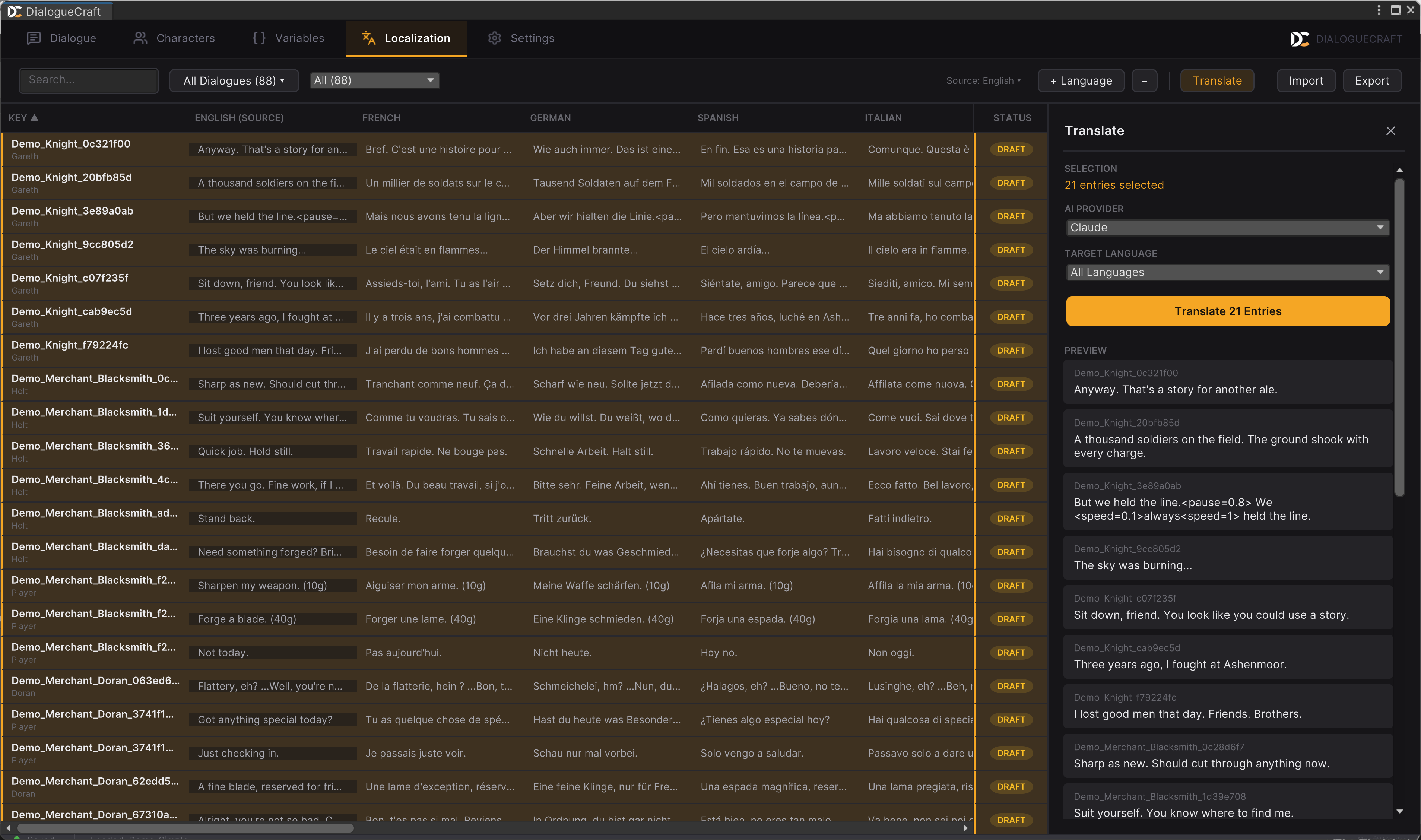
Translate dialogue text into any language with context-aware prompts that preserve character personality and variable placeholders.
Single entry translation
From the Localization tab, select an entry and use the AI translate button. Internally this calls:
var result = await DialogueCraftAI.TranslateAsync(new TranslationRequest
{
    Text = "Hello, traveler!",
    SourceLanguage = "en",
    TargetLanguage = "fr",
    SpeakerName = "Merchant",
    SpeakerPersonality = "Friendly, boisterous shopkeeper",
    ContentType = "Dialogue line",
    IncludePersonality = true,
    IncludeContext = true
});
The prompt builder (AIPromptBuilder) creates a system prompt declaring the AI as a "professional game dialogue translator" and includes rules:
- Maintain character personality and tone
- Keep
{variables},[tags], and<markup>unchanged - Use natural, conversational game dialogue
- Output ONLY the translation
The output cleaner (AIPromptBuilder.CleanTranslationOutput) strips common AI artifacts: surrounding quotes, language prefixes ("FR:"), parenthetical explanations, and multi-line responses.
Batch translation
The AI Translation panel (AITranslationPanel) provides a full batch translation workflow:
-
Scope selection:
- Missing only -- Translate entries with no translation yet
- All entries -- Re-translate everything (skips entries marked Final)
- Re-translate drafts -- Only re-translate AI-generated drafts
-
Provider selection: Choose from configured API providers. The panel shows cost estimates based on entry count.
-
Context options:
- Character personality -- Include speaker personality in prompts
- Surrounding dialogue -- Include previous/next lines for context
-
Execution: Entries are processed in batches of 10 using JSON schema for structured output. A progress bar shows current status with cancel support.
-
Results: Translated text is saved with
TranslationStatus.Draftstatus. The results panel shows success/failure counts.
TranslationRequest fields
| Field | Type | Purpose |
|---|---|---|
Text | string | Text to translate |
SourceLanguage | string | Source language code (default "en") |
TargetLanguage | string | Target language code |
EntryKey | string | Localization entry key for reference |
ContentType | string | "Dialogue line" or "Player choice" |
SpeakerName | string | Speaker display name |
SpeakerPersonality | string | Speaker personality description |
PreviousLine | string | Previous dialogue line for context |
MaxLength | int | Character limit (0 = no limit) |
IncludePersonality | bool | Include personality in prompt (default true) |
IncludeContext | bool | Include surrounding lines (default true) |
BatchTranslationResult
| Field | Type | Purpose |
|---|---|---|
TotalEntries | int | Total entries processed |
SuccessCount | int | Successfully translated |
FailedCount | int | Failed translations |
SkippedCount | int | Skipped (already translated/Final) |
TotalTokensUsed | int | Total API tokens consumed |
TotalDurationMs | long | Total time in milliseconds |
WasCancelled | bool | Whether the operation was cancelled |
AllSucceeded | bool | True if no failures and not cancelled |
Supported languages
The AIPromptBuilder.GetLanguageName() method maps language codes to full names. Supported codes: en, fr, de, es, it, pt, ru, ja, ko, zh, zh-cn, zh-tw, ar, hi, pl, nl, sv, fi, no, da, tr, th, vi, id, ms, cs, hu, ro, uk, el, he. Any unrecognized code is passed through as-is.
Layout Preservation
When the AI generates new nodes, two layout systems ensure they are positioned cleanly in the graph.
AITreeLayout
AITreeLayout runs during ContentTreeBuilder.Build() before the changeset is applied. It uses a simplified Reingold-Tilford tree algorithm:
- Build tree structure from node changes and connections. Nodes whose parent is an existing graph node become roots with external anchors.
- Compute subtree heights (bottom-up). Leaf nodes get
NODE_HEIGHT(250px). Linear chains inherit their child's height. Branching nodes sum their children's heights plus gaps. - Assign positions (top-down). Each node is centered within its allocated vertical region. Branching nodes distribute children vertically.
Layout constants: NODE_WIDTH = 350, HORIZONTAL_GAP = 50, VERTICAL_GAP = 30.
AIAutoLayout
AIAutoLayout runs after nodes are rendered in the graph view. It uses actual rendered node sizes (via resolvedStyle) instead of estimated dimensions:
- Collect node info -- Queries rendered width/height from each node view
- Group into columns -- Clusters nodes by X position within a tolerance of 50px
- Layout columns -- Stacks nodes vertically within each column, aligning the first column with the anchor node's Y position
- Apply positions -- Updates both the node views and underlying data
Called via:
AIAutoLayout.LayoutNewNodes(graphView, newNodeGuids, anchorGuid, onComplete);
The method schedules two EditorApplication.delayCall callbacks to ensure the layout pass completes before measuring node sizes.
Splice repositioning
When content is inserted between existing nodes (splice), ContentTreeBuilder:
- Repositions new nodes to start at the splice target's position
- Calculates the horizontal depth of the new content
- Shifts all downstream existing nodes to the right by
depth * HORIZONTAL_SPACING - Returns position shifts in
AIChangeset.positionShifts